
Cryostat Documentation
- Advanced Configuration
- Configure the Cryostat Operator
- Target Namespaces
- Disabling cert-manager Integration
- Custom Event Templates
- Trusted TLS Certificates
- Storage Options
- Service Options
- Reports Options
- Resource Requirements
- Network Options
- Target Cache Configuration Options
- Application Database
- Authorization Options
- Security Context
- Scheduling Options
- Target Discovery Options
- Using the Cryostat Agent
- Configure the Agent Harvester
- Connect Cryostat to External Storage
- Configure the Cryostat Operator
- Additional Information
Advanced Configuration
Configure the Cryostat Operator
The Cryostat Operator supports a large number of configuration options to allow the user to tailor the Cryostat deployment to their particular setups and applications. The following guide will detail the available configuration options and Custom Resource properties for configuring the Cryostat Operator. Note when creating a Custom Resource that only one Cryostat object should exist in a namespace at a time.
Target Namespaces
Specify the list of namespaces containing your workloads that you want your multi-namespace Cryostat installation to work with under the spec.targetNamespaces property. The resulting Cryostat will have permissions to access workloads only within these specified namespaces. If not specified, spec.targetNamespaces will default to the namespace of the Cryostat object.
apiVersion: operator.cryostat.io/v1beta2
kind: Cryostat
metadata:
  name: cryostat-sample
spec:
  targetNamespaces:
    - my-app-namespace
    - my-other-app-namespace
Data Isolation
When installed in a multi-namespace manner, all users with access to a Cryostat instance have the same visibility and privileges to all data available to that Cryostat instance. Administrators deploying Cryostat instances must ensure that the users who have access to a Cryostat instance also have equivalent access to all the applications that can be monitored by that Cryostat instance. Otherwise, underprivileged users may use Cryostat to escalate permissions to start recordings and collect JFR data from applications that they do not otherwise have access to.
Authorization checks are done against the namespace where Cryostat is installed and the list of target namespaces of your multi-namespace Cryostat. For a user to use Cryostat with workloads in a target namespace, that user must have the necessary Kubernetes permissions to create single-namespaced Cryostat instances in that target namespace.
Disabling cert-manager Integration
By default, the Cryostat Operator expects cert-manager to be available in the cluster. The Cryostat Operator uses cert-manager to generate a self-signed CA to allow traffic between Cryostat components within the cluster to use HTTPS. If cert-manager is not available in the cluster, this integration can be disabled with the spec.enableCertManager property.
apiVersion: operator.cryostat.io/v1beta2
kind: Cryostat
metadata:
  name: cryostat-sample
spec:
  enableCertManager: false
Custom Event Templates
All JDK Flight Recordings created by Cryostat are configured using an event template. These templates specify which events to record, and Cryostat includes some templates automatically, including those provided by the target’s JVM. Cryostat also provides the ability to upload customized templates, which can then be used to create recordings.
The Cryostat Operator provides an additional feature to pre-configure Cryostat with custom templates that are stored in Config Maps. When Cryostat is deployed from this Cryostat object, it will have the listed templates already available for use.
apiVersion: operator.cryostat.io/v1beta2
kind: Cryostat
metadata:
  name: cryostat-sample
spec:
  eventTemplates:
  - configMapName: custom-template
    filename: my-template.jfc
Multiple templates can be specified in the eventTemplates array. Each configMapName must refer to the name of a Config Map in the same namespace as Cryostat. The corresponding filename must be a key within that Config Map containing the template file.
Trusted TLS Certificates
By default, Cryostat uses TLS when connecting to the user’s applications over JMX. In order to verify the identity of the applications Cryostat connects to, it should be configured to trust the TLS certificates presented by those applications. One way to do that is to specify certificates that Cryostat should trust in the spec.trustedCertSecrets property.
apiVersion: operator.cryostat.io/v1beta2
kind: Cryostat
metadata:
  name: cryostat-sample
spec:
  trustedCertSecrets:
  - secretName: my-tls-secret
    certificateKey: ca.crt
Multiple TLS secrets may be specified in the trustedCertSecrets array. The secretName property is mandatory, and must refer to the name of a Secret within the same namespace as the Cryostat object. The certificateKey must point to the X.509 certificate file to be trusted. If certificateKey is omitted, the default key name of tls.crt will be used.
Storage Options
Cryostat uses storage volumes to persist data in its database and object storage. In the interest of persisting these files across redeployments, Cryostat uses a Persistent Volume Claim by default. Unless overidden, the operator will create a Persistent Volume Claim with the default Storage Class and 500MiB of storage capacity.
Through the spec.storageOptions property, users can choose to provide either a custom Persistent Volume Claim pvc.spec or an emptyDir configuration. Either of these configurations will override any defaults when the Cryostat Operator creates the storage volume. If an emptyDir configuration is enabled, Cryostat will use an EmptyDir volume instead of a Persistent Volume Claim. Additional labels and annotations for the Persistent Volume Claim may also be specified.
apiVersion: operator.cryostat.io/v1beta2
kind: Cryostat
metadata:
  name: cryostat-sample
spec:
  storageOptions:
    pvc:
      labels:
        my-custom-label: some-value
      annotations:
        my-custom-annotation: some-value
      spec:
        storageClassName: faster
        resources:
          requests:
            storage: 1Gi
The emptyDir.medium and emptyDir.sizeLimit fields are optional. If an emptyDir is
specified without additional configurations, Cryostat will mount an EmptyDir volume with the same default values as Kubernetes.
apiVersion: operator.cryostat.io/v1beta2
kind: Cryostat
metadata:
  name: cryostat-sample
spec:
  storageOptions:
    emptyDir:
      enabled: true
      medium: "Memory"
      sizeLimit: 1Gi
Service Options
The Cryostat Operator creates two services: one for the core Cryostat application and (optionally) one for the cryostat-reports sidecars. These services are created by default as Cluster IP services. The core service exposes one ports 4180 for HTTP(S). The Reports service exposts port 10000 for HTTP(S) traffic. The service type, port numbers, labels and annotations can all be customized using the spec.serviceOptions property.
apiVersion: operator.cryostat.io/v1beta2
kind: Cryostat
metadata:
  name: cryostat-sample
spec:
  serviceOptions:
    coreConfig:
      labels:
        my-custom-label: some-value
      annotations:
        my-custom-annotation: some-value
      serviceType: NodePort
      httpPort: 8080
    reportsConfig:
      labels:
        my-custom-label: some-value
      annotations:
        my-custom-annotation: some-value
      serviceType: NodePort
      httpPort: 13161
Reports Options
The Cryostat Operator can optionally configure Cryostat to use cryostat-reports as a sidecar microservice for generating Automated Rules Analysis Reports. If this is not configured then the main Cryostat container will perform this task itself, however, this is a relatively heavyweight and resource-intensive task. It is recommended to configure cryostat-reports sidecars if the Automated Analysis feature will be used or relied upon. The number of sidecar containers to deploy and the amount of CPU and memory resources to allocate for each container can be customized using the spec.reportOptions property.
apiVersion: operator.cryostat.io/v1beta2
kind: Cryostat
metadata:
  name: cryostat-sample
spec:
  reportOptions:
    replicas: 1
    resources:
      requests:
        cpu: 1000m
        memory: 512Mi
If zero sidecar replicas are configured, SubProcessMaxHeapSize configures
the maximum heap size of the main Cryostat container’s subprocess report generator in MiB.
The default heap size is 200 MiB.
apiVersion: operator.cryostat.io/v1beta2
kind: Cryostat
metadata:
  name: cryostat-sample
spec:
  reportOptions:
    replicas: 0
    subProcessMaxHeapSize: 200
If the sidecar’s resource requests/limits are not specified, they are set with the following defaults:
| Resource | Requests | Limits |
|---|---|---|
| Reports Container CPU | 500m | 1000m |
| Reports Container Memory | 512Mi | 1Gi |
Resource Requirements
By default, the operator deploys Cryostat with pre-configured resource requests/limits:
| Resource | Requests | Limits |
|---|---|---|
| Agent Proxy container CPU | 50m | 500m |
| Agent Proxy container Memory | 64Mi | 200Mi |
| Auth Proxy container CPU | 50m | 500m |
| Auth Proxy container Memory | 64Mi | 128Mi |
| Cryostat container CPU | 500m | 2000m |
| Cryostat container Memory | 384Mi | 1Gi |
| JFR Data Source container CPU | 200m | 500m |
| JFR Data Source container Memory | 200Mi | 500Mi |
| Grafana container CPU | 50m | 500m |
| Grafana container Memory | 128Mi | 256Mi |
| Database container CPU | 50m | 500m |
| Database container Memory | 64Mi | 200Mi |
| Storage container CPU | 50m | 500m |
| Storage container Memory | 256Mi | 512Mi |
Using the Cryostat Custom Resource, you can define resources requests and/or limits for each of the containers in Cryostat’s main pod:
- the
agent-proxycontainer running the nginx reverse proxy, which allows agents to communicate with Cryostat. - the
auth-proxycontainer running the oauth2-proxy, which performs authorization checks, and is placed in front of the operand containers. - the
corecontainer running the Cryostat backend and web application. If setting a memory limit for this container, we recommend at least 768MiB. - the
datasourcecontainer running JFR Data Source, which converts recordings into a Grafana-compatible format. - the
grafanacontainer running the Grafana instance customized for Cryostat. - the
databasecontainer running the Postgres database image customized for Cryostat. - the
storagecontainer running the S3-compatible storage provider for Cryostat.apiVersion: operator.cryostat.io/v1beta2 kind: Cryostat metadata: name: cryostat-sample spec: resources: agentProxyResources: requests: cpu: 800m memory: 256Mi limits: cpu: 1000m memory: 512Mi authProxyResources: requests: cpu: 800m memory: 256Mi limits: cpu: 1000m memory: 512Mi coreResources: requests: cpu: 1200m memory: 768Mi limits: cpu: 2000m memory: 2Gi dataSourceResources: requests: cpu: 500m memory: 256Mi limits: cpu: 800m memory: 512Mi grafanaResources: requests: cpu: 800m memory: 256Mi limits: cpu: 1000m memory: 512Mi databaseResources: requests: 600m cpu: 256Mi memory: limits: cpu: 800m memory: 512Mi objectStorageResources: requests: cpu: 500m memory: 512Mi limits: cpu: 1000m memory: 768MiThis example sets CPU and memory requests and limits for each container, but you may choose to define any combination of requests and limits that suits your use case.
Note that if you define limits lower than the default requests, the resource requests will be set to the value of your provided limits.
Network Options
When running on Kubernetes, the Cryostat Operator requires Ingress configurations for each of its services to make them available outside of the cluster. For a Cryostat object named x, the following Ingress configuration must be specified within the spec.networkOptions property:
coreConfigexposing the servicexon port8181(or alternate specified in Service Options).
The user is responsible for providing the hostname for this Ingress. In Minikube, this can be done by adding an entry to the host machine’s /etc/hosts for the hostname, pointing to Minikube’s IP address. See: https://kubernetes.io/docs/tasks/access-application-cluster/ingress-minikube/
Since Cryostat only accept HTTPS traffic by default, the Ingress should be configured to forward traffic to the backend services over HTTPS. For the NGINX Ingress Controller, this can be done with the nginx.ingress.kubernetes.io/backend-protocol annotation. The operator considers TLS to be enabled for the Ingress if the Ingress’s spec.tls array is non-empty. The example below uses the cluster’s default wildcard certificate.
apiVersion: operator.cryostat.io/v1beta2
kind: Cryostat
metadata:
  name: cryostat-sample
spec:
  networkOptions:
    coreConfig:
      annotations:
        nginx.ingress.kubernetes.io/backend-protocol : HTTPS
      ingressSpec:
        tls:
        - {}
        rules:
        - host: testing.cryostat
          http:
            paths:
            - path: /
              pathType: Prefix
              backend:
                service:
                  name: cryostat-sample
                  port:
                    number: 8181
When running on OpenShift, labels and annotations specified in coreConfig will be applied to the coresponding Route created by the operator.
Target Cache Configuration Options
Cryostat’s target connection cache can be optionally configured with targetCacheSize and targetCacheTTL.
targetCacheSize sets the maximum number of target connections cached by Cryostat.
Use -1 for an unlimited cache size. The default cache size is unlimited (-1).
targetCacheTTL sets the time to live (in seconds) for cached target connections. The default TTL is 10 seconds.
apiVersion: operator.cryostat.io/v1beta2
kind: Cryostat
metadata:
  name: cryostat-sample
spec:
  targetConnectionCacheOptions:
    targetCacheSize: -1
    targetCacheTTL: 10
Application Database
Cryostat stores various pieces of information in a database. This can also include target application connection credentials, such as target applications’ JMX credentials, which are stored in an encrypted database table. By default, the Cryostat Operator will generate both a random database connection key and a random table encryption key and configure Cryostat and the database to use these. You may also specify these keys yourself by creating a Secret containing the keys CONNECTION_KEY and ENCRYPTION_KEY.
For example:
apiVersion: v1
kind: Secret
metadata:
  name: credentials-database-secret
type: Opaque
stringData:
  CONNECTION_KEY: a-very-good-password
  ENCRYPTION_KEY: a-second-good-password
Then, the property .spec.databaseOptions.secretName must be set to use this Secret for the two keys.
apiVersion: operator.cryostat.io/v1beta2
kind: Cryostat
metadata:
  name: cryostat-sample
spec:
  databaseOptions:
    secretName: credentials-database-secret
Note: If the secret is not provided, one is generated for this purpose containing two randomly generated keys. However, switching between using provided and generated secret is not allowed to avoid password mismatch that causes the Cryostat application’s failure to access the database or failure to decrypt the credentials keyring.
Authorization Options
On OpenShift, the authentication/authorization proxy deployed in front of the Cryostat application requires all users to pass a create pods/exec access review in the Cryostat installation namespace
by default. This means that access to the Cryostat application is granted to exactly the set of OpenShift cluster user accounts and service accounts which have this Role. This can be configured
using spec.authorizationOptions.openShiftSSO.accessReview as depicted below, but note that the namespace field should always be included and in most cases should match the Cryostat installation namespace.
The auth proxy may also be configured to allow Basic authentication by creating a Secret containing an htpasswd user file. An htpasswd file granting access to a user named user with the
password pass can be generated like this: htpasswd -cbB htpasswd.conf user pass. The password should use bcrypt hashing, specified by the -B flag.
Any user accounts defined in this file will also be granted access to the Cryostat application, and when this configuration is enabled you will see an additional Basic login option when visiting
the Cryostat application UI. If deployed on a non-OpenShift Kubernetes then this is the only supported authentication mechanism.
If not deployed on OpenShift, or if OpenShift SSO integration is disabled, then no authentication is performed by default - the Cryostat application UI is openly accessible. You should configure
htpasswd Basic authentication or install some other access control mechanism.
apiVersion: operator.cryostat.io/v1beta2
kind: Cryostat
metadata:
  name: cryostat-sample
spec:
  authorizationOptions:
    openShiftSSO: # only effective when running on OpenShift
      disable: false # set this to `true` to disable OpenShift SSO integration
      accessReview: # override this to change the required Role for users and service accounts to access the application
        verb: create
        resource: pods
        subresource: exec
        namespace: cryostat-install-namespace
    basicAuth:
      secretName: my-secret # a Secret with this name must exist in the Cryostat installation namespace
      filename: htpasswd.conf # the name of the htpasswd user file within the Secret
Security Context
With Pod Security Admission, pods must be properly configured under the enforced security standards defined globally or on namespace level to be admitted to launch.
The user is responsible for ensuring the security contexts of their workloads to meet these standards. The property spec.securityOptions can be set to define security contexts for Cryostat application and spec.reportOptions.securityOptions is for its report sidecar.
apiVersion: operator.cryostat.io/v1beta2
kind: Cryostat
metadata:
  name: cryostat-sample
spec:
  securityOptions:
    podSecurityContext:
      runAsNonRoot: true
      seccompProfile:
        type: RuntimeDefault
    authProxySecurityContext:
      allowPrivilegeEscalation: false
      capabilities:
        drop:
        - ALL
    coreSecurityContext:
      allowPrivilegeEscalation: false
      capabilities:
        drop:
        - ALL
      runAsUser: 1001
    dataSourceSecurityContext:
      allowPrivilegeEscalation: false
      capabilities:
        drop:
        - ALL
    grafanaSecurityContext:
      allowPrivilegeEscalation: false
      capabilities:
        drop:
        - ALL
    storageSecurityContext:
      allowPrivilegeEscalation: false
      capabilities:
        drop:
        - ALL
    databaseSecurityContext:
      allowPrivilegeEscalation: false
      capabilities:
        drop:
        - ALL
  reportOptions:
    replicas: 1
    podSecurityContext:
      runAsNonRoot: true
      seccompProfile:
        type: RuntimeDefault
    reportsSecurityContext:
      allowPrivilegeEscalation: false
      capabilities:
        drop:
        - ALL
      runAsUser: 1001
If not specified, the security contexts are defaulted to conform to the restricted Pod Security Standard. For the Cryostat application pod, the operator selects an fsGroup to ensure that Cryostat can read and write files in its Persistent Volume.
On OpenShift, Cryostat application pod’s spec.securityContext.seccompProfile is left unset for backward compatibility. On versions of OpenShift supporting Pod Security Admission, the restricted-v2 Security Context Constraint sets seccompProfile to runtime/default as required for the restricted Pod Security Standard. For more details, see Security Context Constraints.
Scheduling Options
If you wish to control which nodes Cryostat and its reports microservice are scheduled on, you may do so when configuring your Cryostat instance. You can specify a Node Selector, Affinities and Tolerations. For the main Cryostat application, use the spec.SchedulingOptions property. For the report generator, use spec.ReportOptions.SchedulingOptions.
kind: Cryostat
apiVersion: operator.cryostat.io/v1beta2
metadata:
  name: cryostat
spec:
  schedulingOptions:
    nodeSelector:
      node: good
    affinity:
      nodeAffinity:
        requiredDuringSchedulingIgnoredDuringExecution:
          nodeSelectorTerms:
          - matchExpressions:
            - key: node
              operator: In
              values:
              - good
              - better
      podAffinity:
        requiredDuringSchedulingIgnoredDuringExecution:
        - labelSelector:
            matchLabels:
              pod: good
          topologyKey: topology.kubernetes.io/zone
      podAntiAffinity:
        requiredDuringSchedulingIgnoredDuringExecution:
        - labelSelector:
            matchLabels:
              pod: bad
          topologyKey: topology.kubernetes.io/zone
    tolerations:
    - key: node
      operator: Equal
      value: ok
      effect: NoExecute
  reportOptions:
    replicas: 1
    schedulingOptions:
      nodeSelector:
        node: good
      affinity:
        nodeAffinity:
          requiredDuringSchedulingIgnoredDuringExecution:
            nodeSelectorTerms:
            - matchExpressions:
              - key: node
                operator: In
                values:
                - good
                - better
        podAffinity:
          requiredDuringSchedulingIgnoredDuringExecution:
          - labelSelector:
              matchLabels:
                pod: good
            topologyKey: topology.kubernetes.io/zone
        podAntiAffinity:
          requiredDuringSchedulingIgnoredDuringExecution:
          - labelSelector:
              matchLabels:
                pod: bad
            topologyKey: topology.kubernetes.io/zone
      tolerations:
      - key: node
        operator: Equal
        value: ok
        effect: NoExecute
Target Discovery Options
If you wish to use only Cryostat’s Discovery Plugin API, set the property spec.targetDiscoveryOptions.disableBuiltInDiscovery to true to disable Cryostat’s built-in discovery mechanisms. For more details, see the Discovery Plugin section in the OpenAPI schema.
You may also change the list of port names and port numbers that Cryostat uses to discover compatible target Endpoints. By default it looks for ports with the name jfr-jmx or with the number 9091.
apiVersion: operator.cryostat.io/v1beta2
kind: Cryostat
metadata:
  name: cryostat-sample
spec:
  targetDiscoveryOptions:
    disableBuiltInDiscovery: true
    discoveryPortNames:
      - my-jmx-port # look for ports named my-jmx-port or jdk-observe
      - jdk-observe
    disableBuiltInPortNumbers: true # ignore default port number 9091
Using the Cryostat Agent
The Cryostat Agent is an optional component of Cryostat, implemented as a Java Instrumentation Agent, which acts as a plugin for applications running on the JVM. Prior to the Agent, Cryostat always extracted data from the JVM by initiating a connection over JMX. It then fetched the JFR data from an MBean and pulled it over the network back toward the Cryostat server to make it accessible to end users.
The Agent works differently. It is responsible for fetching data from the JVM and sending it back to Cryostat over HTTP. The Agent works by looking for MBean and JFR data within itself and the application it is plugged into. It is also able to communicate back to Cryostat about the application instance the Cryostat Agent is attached to and how to reach it. The Cryostat Agent also pushes its own Java Flight Recorder (JFR) data back to Cryostat by initiating network connections with Cryostat, which may then analyze and save the data to make it accessible to end users.
The Agent may also be configured, using the property cryostat.agent.api.writes-enabled or the corresponding environment variable CRYOSTAT_AGENT_API_WRITES_ENABLED, to allow bi-directional read-write access over HTTP. This enables dynamic Start/Stop/Delete of Flight Recordings as well as on-demand JFR pulls much like what Cryostat does over JMX.
The programming interfaces for Cryostat and its Agent are designed to implement Cryostat’s specific feature set, rather than being generalized and flexible like JMX. The benefit of this is that the security considerations are easier to understand and model, but choosing to use the Cryostat Agent over JMX may also forego the ability to interoperate with other JMX tooling such as JDK Mission Control, visualvm, jconsole, hawtio, etc.
- The Cryostat Agent retrieves a wide range of information from those Cryostat applications such as
memory usage,CPU utilization, etc. - The Cryostat analyzes these collected data to identify problems that might be affecting the application’s performance.
- The Agent is a third-party Java Instrumentation Agent for developers which can be installed on the target JVM program through the command-line arguments or directly attaching to the running JVM instance.
- The Agent is foreign code for developers to audit and inspect before including it in their application builds. It is a small amount of code to inspect and likely easier to trust than JMX.
- Unlike JMX, the JVM doesn’t come with the Agent included, so developers are required to add the Cryostat Agent to their application builds, then rebuild and deploy the application.
- Once the Agent has been installed or attached to the running JVM instance, it can begin collecting data and sending it to Cryostat for analysis. If enabled, the Cryostat server that the Cryostat Agent is registered with may also begin to send remote management requests to dynamically Start, Stop, or Delete
Flight Recordingsas well as to retrieve JFR and MBean data.
More details about the configuration options for the Cryostat Agent are available here.
Advanced Agent Configuration
Manually Installing the Cryostat Agent
If you are:
- not using the Cryostat Operator
- unable to deploy an Agent to your application
- requiring JMX connections only
- requiring no-downtime instrumentation of Agents
then the Getting Started automatic Agent configuration may not be suitable for your use case. Below are descriptions of how to manually attach the Cryostat Agent to your application.
Dynamically Attaching the Cryostat Agent
Starting with Cryostat 3.0 and Cryostat Agent 0.4 it is possible to attach the Cryostat Agent to your application while the application is running, with no rebuild, redeployment, or restart. To do this, the Agent JAR must still be available in your application’s filesystem (see above for details on how and where to acquire it), and you must be able to execute a new Java process in the same space as the application.
Let’s make this concrete with an example. We will assume you are running your application in Kubernetes and that you have manually downloaded the Cryostat Agent JAR to your workstation.
$ kubectl cp \
    /path/to/cryostat-agent-shaded.jar \
    -n my-namespace \
    mypod:/tmp/cryostat/cryostat-agent-shaded.jar
$ kubectl exec \
    -n my-namespace \
    mypod -c mycontainer \
    -i -t -- \
      java -jar /tmp/cryostat/cryostat-agent-shaded.jar \
      -Dcryostat.agent.baseuri=http://cryostat:8181 \
      -Dcryostat.agent.authorization.type="kubernetes" \
      -Dcryostat.agent.callback=http://${POD_IP}:9977 \
      -Dcryostat.agent.api.writes-enabled=true
- Replace
/path/to/cryostat-agent-shaded.jarwith the real path to the JAR on your workstation - Replace
my-namespacewith the namespace your application is deployed in - Replace
mypodwith the name of your application’s Pod - Replace
mycontainerwith the name of your application’s container within its Pod (or remove this if it is the only container in the Pod) - Replace
http://cryostat:8181with the correct internal Service URL for your Cryostat server within the same Kubernetes cluster - Replace
${POD_IP}with the application Pod’s IP Address as found in its Status usingkubectl get -o yaml
By following this procedure you will copy the Cryostat Agent JAR into the application’s filesystem (kubectl cp), then launch the
Agent as a Java process (kubectl exec). When the Agent is launched in this manner it will look for other Java processes. If it
finds exactly one other Java process then it will use that process’ Attach API and ask the JVM to load the Agent’s JAR, passing its
-D arguments over and setting them as system properties in the application JVM after the Attach API loads the JAR. If you have multiple
Java processes running within the application container then you can either specify a particular PID to the Cryostat Agent so that it
only attaches to that JVM, or you can use the wildcard * asterisk so that the Agent attaches to every JVM it finds (other than its own
bootstrap JVM). You can run the Agent with the -h flag to get details about its options:
$ java -jar cryostat-agent-0.6.0-shaded.jar -h
Usage: CryostatAgent [-hV] [-D=<String=String>]...
                     [--smartTrigger=<smartTriggers>]... [@<filename>...]
                     [<pid>]
Launcher for Cryostat Agent to self-inject and dynamically attach to workload
JVMs
      [@<filename>...]   One or more argument files containing options.
      [<pid>]            The PID to attach to and attempt to self-inject the
                           Cryostat Agent. If not specified, the Agent will
                           look to find exactly one candidate and attach to
                           that, failing if none or more than one are found.
                           Otherwise, this should be a process ID, or the '*'
                           wildcard to request the Agent attempt to attach to
                           all discovered JVMs.
  -D, --property=<String=String>
                         Optional property definitions to supply to the
                           injected Agent copies to add or override property
                           definitions once the Agent is running in the
                           workload JVM. These should be specified as key=value
                           pairs, ex. -Dcryostat.agent.baseuri=http://cryostat.
                           service.local . May be specified more than once.
  -h, --help             Show this help message and exit.
      --smartTrigger=<smartTriggers>
                         Smart Triggers definition. May be specified more than
                           once.
  -V, --version          Print version information and exit.
Note: this procedure will only attach the Cryostat Agent to the application once, for the application process’ current lifecycle. If the application process is restarted then the Agent will no longer be loaded, and you will need to perform the steps above again to re-attach it. If you scale up your application so there are more Replicas then these additional instances will also not have the Agent attached. This workflow is useful primarily for one-off troubleshooting or profiling scenarios. If you find yourself performing these steps often then consider statically attaching the Agent so that the configuration for attaching it occurs at every application startup.
Statically Attaching the Cryostat Agent
The Cryostat Agent JAR must be available to your application JVM. The JAR asset can be downloaded directly from upstream,
or from Maven Central. For most use cases the -shaded JAR would be appropriate.
You may also include the Agent as a dependency in your application’s pom.xml to automate the download:
<project>
  ...
  <build>
    <plugins>
      <plugin>
        <artifactId>maven-dependency-plugin</artifactId>
        <version>3.9.0</version>
        <executions>
          <execution>
            <phase>prepare-package</phase>
            <goals>
              <goal>copy</goal>
            </goals>
            <configuration>
              <artifactItems>
                <artifactItem>
                  <groupId>io.cryostat</groupId>
                  <artifactId>cryostat-agent</artifactId>
                  <version>0.6.0</version>
                  <classifier>shaded</classifier>
                </artifactItem>
              </artifactItems>
              <stripVersion>true</stripVersion>
            </configuration>
          </execution>
        </executions>
      </plugin>
    </plugins>
    ...
  </build>
  ...
</project>
The next time we build our application, the Cryostat Agent JAR will be located at target/dependency/cryostat-agent-shaded.jar. Then we can update our Dockerfile:
...
COPY target/dependency/cryostat-agent-shaded.jar /deployments/app/
...
# Assume we are using an application framework where the JAVA_OPTS environment variable can be used to pass JVM flags
ENV JAVA_OPTS="-javaagent:/deployments/app/cryostat-agent-shaded.jar"
The Cryostat Agent is also available as an OCI Container Image on quay.io. We can use this directly in our application Dockerfile in a multi-stage build, rather than downloading the Agent JAR from GitHub or Maven Central:
ARG cryostat_agent_version

FROM quay.io/cryostat/cryostat-agent-init:${cryostat_agent_version} AS cryostat_agent

FROM ${application_base_img}
COPY --from=cryostat_agent /cryostat/agent/cryostat-agent-shaded.jar /deployments/app/cryostat-agent-shaded.jar
...
# Assume we are using an application framework where the JAVA_OPTS environment variable can be used to pass JVM flags
ENV JAVA_OPTS="-javaagent:/deployments/app/cryostat-agent-shaded.jar"
Next we must rebuild our container image. This is specific to your application but will likely look something like
docker build -t docker.io/myorg/myapp:latest -f src/main/docker/Dockerfile --build-arg cryostat_agent_version=0.6.0 .
(omit the --build-arg if you are not using the multi-stage build step above). Push that updated image or otherwise get it updated in your
Kubernetes registry, then modify your application Deployment to supply JVM system properties or environment variables configuring
the Cryostat Agent:
apiVersion: apps/v1
kind: Deployment
...
spec:
  ...
  template:
    ...
    spec:
      containers:
        - name: sample-app
          image: docker.io/myorg/myapp:latest
          env:
            - name: CRYOSTAT_AGENT_APP_NAME
              # Replace this with any value you like to use to identify your application.
              value: "myapp"
            - name: NAMESPACE
              valueFrom:
                fieldRef:
                  fieldPath: metadata.namespace
              # Update this to correspond to the name of your Cryostat instance
              # if it is not 'cryostat'.
            - name: CRYOSTAT_INSTANCE_NAME
              value: cryostat
            - name: CRYOSTAT_AGENT_BASEURI
              # This assumes that the target application # and the Cryostat instance are in the same
              # Namespace, but you may choose to configure the Agent to communicate with a Cryostat in
              # a different Namespace, too.
              # (https://kubernetes.io/docs/concepts/services-networking/dns-pod-service/)
              value: https://$(CRYOSTAT_INSTANCE_NAME).$(NAMESPACE).svc.cluster.local:4180
            - name: CRYOSTAT_AGENT_API_WRITES_ENABLED
              # Set this to 'true' to turn on the "write" or "mutation" capabilities of the
              # Agent's HTTP API. This defaults to 'false', so the Agent HTTP API only exposes
              # readonly access to certain low-sensitivity calls. If this is 'true' then the
              # Agent will allow Cryostat to dynamically request JFR recordings to be started,
              # stopped, deleted, etc. as well as listed and retrieved.
              value: true
            - name: POD_IP
              valueFrom:
                fieldRef:
                  fieldPath: status.podIP
            - name: CRYOSTAT_AGENT_CALLBACK
              # This infers the Agent Callback directly from the Pod's IP address using the
              # Kubernetes Downward API. Use this value directly as provided. The port number
              # 9977 can be changed but must match the containerPort below.
              value: "http://$(POD_IP):9977"
              # This tells the Agent to look for its Kubernetes serviceaccount token mounted to
              # its own Pod at the default filesystem path, and use the token there for Bearer
              # Authorization to the Cryostat instance. This should be the correct behaviour in
              # most scenarios and allows you to configure the serviceaccount's authorization by
              # using standard Kubernetes RBAC for the application Pod's serviceaccount.
            - name: CRYOSTAT_AGENT_AUTHORIZATION_TYPE
              value: kubernetes

              # These two environment variables should not be set in a production environment.
              # For development and testing it can be useful to disable TLS trust and hostname
              # verification. In practice, you should provide the Agent with the Cryostat instance's
              # TLS certificate so that the Agent can trust it and only establish connections to
              # that trusted instance. Configuration of the Agent's TLS trust is covered elsewhere.
            - name: CRYOSTAT_AGENT_WEBCLIENT_TLS_TRUST_ALL
              value: "true"
            - name: CRYOSTAT_AGENT_WEBCLIENT_TLS_VERIFY_HOSTNAME
              value: "false"
          ports:
            - containerPort: 9977
              protocol: TCP
          resources: {}
      restartPolicy: Always
status: {}
Port number 9977 is the default HTTP port that the Agent exposes for its internal webserver that services Cryostat requests.
If this port number conflicts with another port used by your application, be sure to change both the ports.containerPort spec
as well as the CRYOSTAT_AGENT_CALLBACK environment variable.
Finally, create a Service to enable Cryostat to make requests to this Agent:
apiVersion: v1
kind: Service
...
spec:
  ports:
    - name: "cryostat-agent"
      port: 9977
      targetPort: 9977
...
You may also be interested in using the Cryostat Agent for application discovery, but using JMX for remote management and data
access rather than the Cryostat Agent HTTP API. In that case, simply set CRYOSTAT_AGENT_API_WRITES_ENABLED=false to turn off as much
of the Cryostat Agent HTTP API as possible, then continue to the next section to additionally configure your application
to enable and expose JMX for remote management and data access. If the Cryostat Agent detects that the application it is attached
to has JMX enabled then it will publish itself to the Cryostat server with both an Agent HTTP URL and a JMX URL. If JMX
is not detected then it will only publish the HTTP URL.
Configure the Agent Harvester
The Cryostat Agent contains a Harvester feature that allows you to start a new recording with a given event template on agent initialization, and periodically push the collected JFR data to the associated Cryostat server. The Agent will also attempt to push the tail end of this recording on JVM shutdown so that the cause of an unexpected JVM shutdown can be captured for later analysis.
The Harvester supports a number of configuration options that can be used to determine how often it pushes the collected JFR data, the template to be used and limitations on how much data to collect, as well as how long the upload may take. The following configuration options are available:
cryostat.agent.harvester.period-ms[long]: the length of time between JFR collections and pushes by the harvester. This also controls the maximum age of data stored in the buffer for the harvester’s managed Flight Recording. Everyperiod-msthe harvester will upload a JFR binary file to thecryostat.agent.baseuriarchives. Default-1, which indicates no scheduled harvest uploading will be performed.cryostat.agent.harvester.template[String]: the name of the.jfcevent template configuration to use for the harvester’s managed Flight Recording. For example, if the application image contains/usr/lib/jvm/java-17-openjdk/lib/jfr/default.jfcthen this value would be simply bedefault. This can also be the value of thelabelattribute of the root element within that file, for exampleContinuous. Defaults to the empty string, so that no recording is started.cryostat.agent.harvester.max-files[String]: the maximum number of pushed files that Cryostat will keep from the agent. This is included with the harvester’s push requests and instructs Cryostat to prune, in a FIFO manner, the oldest JFR files within the attached JVM target’s storage, while the number of stored recordings is greater than this configuration’s maximum file limit. Default2147483647(Integer.MAX_VALUE).cryostat.agent.harvester.upload.timeout-ms[long]: the duration in milliseconds to wait for HTTP upload requests to the Cryostat server to complete and respond. Default30000.cryostat.agent.harvester.exit.max-age-ms[long]: the JFRmaxagesetting, specified in milliseconds, to apply to recording data uploaded to the Cryostat server when the JVM this Agent instance is attached to exits. This ensures that tail-end data is captured between the last periodic push and the application exit. Exit uploads only occur when the application receivesSIGINT/SIGTERMfrom the operating system or container platform.cryostat.agent.harvester.exit.max-size-b[long]: the JFRmaxsizesetting, specified in bytes, to apply to exit uploads as described above.cryostat.agent.harvester.max-age-ms[long]: the JFRmaxagesetting, specified in milliseconds, to apply to periodic uploads during the application lifecycle. Defaults to0, which is interpreted as 1.5x the harvester period (cryostat.agent.harvester.period-ms).cryostat.agent.harvester.max-size-b[long]: the JFRmaxsizesetting, specified in bytes, to apply to periodic uploads during the application lifecycle. Defaults to0, which meansunlimited.
Note that the Harvester Period and Template options must be set for the Harvester to regularly push JFR data. If only the Template is set the Harvester will only attempt to push on shutdown. If neither are set the Harvester will not do anything unless configured alongside Smart Triggers as described below.
These configuration options may be set either as JVM system properties, for example:
-Dcryostat.agent.harvester.period-ms=1000
-Dcryostat.agent.harvester.template=Profiling
or by setting them as environment variables, for example:
- name: CRYOSTAT_AGENT_HARVESTER_PERIOD_MS
  value: 1000
- name: CRYOSTAT_AGENT_HARVESTER_TEMPLATE
  value: Profiling
MBean Trigger Integration
When the Cryostat Agent is configured to start dynamic recordings based on custom MBean triggers, you can also integrate them with the Harvester to automatically push the collected JFR data to the Cryostat Server.
By defining MBean custom triggers and an agent harvester period without a harvester template, you can achieve a setup where the agent does both of the following:
- Agent dynamically starts JFR recordings based on MBean custom triggers.
- Agent uses configured harvester periods to periodically capture snapshots of the recording data and upload this data to the Cryostat server.
In this situation, the agent will continue to capture recording data until you manually stop the dynamic JFR recording or the host JVM shuts down.
For instructions on how to install the Cryostat Agent into your applications, check the Setup section in Getting Started.
Connect Cryostat to External Storage
When deploying Cryostat in a Kubernetes environment, you may configure Cryostat through the Cryostat Operator or Helm Chart to use an external S3-compatible storage provider.
Configuring the Operator with External S3
The Cryostat Operator supports a number of configuration options for setting up Cryostat to use an External S3 storage provider. These may be configured through the console interface while creating a Cryostat Custom Resource or through a YAML file. The objectStorageOptions structure has the following properties:
spec:
    objectStorageOptions:
        provider:
            region: # Object Storage Provider Region
            url: # Complete URL to the Storage Provider
            useVirtualHostAccess: # Whether virtual host subdomain access should be used, as opposed to path-style access.
            tlsTrustAll: # Whether Cryostat should trust all TLS certificates presented by the external object storage provider.
            metadataMode: # The strategy Cryostat will use for storing files' metadata. The default 'tagging' strategy stores all metadata as object Tags. The 'metadata' strategy stores metadata as object Metadata, which is immutable but allows for more entries than Tags. The 'bucket' strategy stores metadata as separate files (ex. JSON object maps) in a dedicated bucket, with prefixes to differentiate the kind of object the metadata belongs to.
            disablePresignedDownloads: # Whether file downloads from storage to the user's browser should be performed using presigned URLs, or by Cryostat acting as a "network pipe." Enabling this reduces network utilization and latency and removes some I/O from Cryostat, but requires that the object storage container URLs are accessible to the user's browser. Defaults to inheriting the .spec.objectStorageProviderOptions.disablePresignedFileTransfers value.
        secretName: # Name of the secret containing the object storage secret access key. This secret must contain a ACCESS_KEY secret which is the object storage access key ID, and a SECRET_KEY secret which is the object storage secret access key. If using an external S3 provider requiring authentication then this must be provided. It is recommended that the secret should be marked as immutable to avoid accidental changes to secret's data.
Following this, the storageBucketNames structure can be used to specify the names of storage buckets for Cryostat to use. If these buckets don’t exist, Cryostat will attempt to create them upon starting. If relying on automatic bucket creation, be aware that for some S3 Storage Providers, bucket names must be unique across the entire system so care should be taken to avoid name collisions.
spec:
    storageBucketNames:
        archivedRecordings: # The name of the bucket used to store Archived JFR files.
        archivedReports: # The name of the bucket used to store a cache of Automated Analysis reports attached to Archived JFR files.
        eventTemplates: # The name of the bucket used to store custom Event Templates.
        heapDumps: # The name of the bucket used to store JVM heap dumps.
        jmcAgentProbeTemplates: # The name of the bucket used to store JMC Agent Probe templates.
        metadata: # The name of the bucket used to storage metadata for other objects (ex. archived recordings). This is only used if the .spec.objectStorageOptions.provider.metadataMode is set to 'bucket'.
        threadDumps: # The name of the bucket used to storage JVM thread dumps.
In order for Cryostat to successfully connect to an external S3 storage provider, it needs a Kubernetes Secret containing an ACCESS_KEY and SECRET_KEY. The details are described above. This secret can be created through the Openshift Console interface, or through a yaml or the command line:
kubectl create secret generic s3cred \
--from-literal=ACCESS_KEY=cryostat \
--from-literal=STORAGE_KEY=123456789
With this Secret created, we can now create a sample configuration to connect Cryostat to an external storage provider hosted at some-storage-provider:
spec:
    objectStorageOptions:
        provider:
            region: us-east-1
            url: https://some-storage-provider.com
            useVirtualHostAccess: false
            disablePresignedDownloads: false
            tlsTrustAll: false
            metadataMode: tagging
        secretName: s3cred
    storageBucketNames:
        archivedRecordings: cryostat-archived-recordings
        archivedReports: cryostat-archived-reports
        eventTemplates: cryostat-event-templates
        heapDumps: cryostat-heap-dumps
        jmcAgentProbeTemplates: cryostat-probe-templates
        metadata: cryostat-metadata
        threadDumps: cryostat-thread-dumps
This can be added to the spec of a Cryostat Custom Resource or filled in as fields while creating one in the Openshift Console
Configuring the Helm Chart with External S3
Similar to the Cryostat Operator, the helm chart supports a number of configuration options for configuring Cryostat for use with an external S3 Storage Provider.
The options present in the helm chart mirror those described for the Cryostat Operator above. Note that like the Cryostat Operator, the helm chart needs a Kubernetes Secret containing the storage access key and secret key:
kubectl create secret generic s3cred \
  --from-literal=STORAGE_ACCESS_KEY=abcd1234 \
  --from-literal=STORAGE_ACCESS_KEY_ID=cryostat
Following this, an invocation like the following will deploy Cryostat configured to use an external S3 Storage Provider:
helm install \
  --set storage.provider.url=https://path-to-storage-provider.com \
  --set storage.storageSecretName=s3cred \
  --set storage.provider.region=us-east-1 \
  --set storage.provider.usePathStyleAccess=false \
  --set storage.provider.metadata.storageMode=bucket \
  --set storage.buckets.names.archivedRecordings=cryostat-archivedrecordings \
  --set storage.buckets.names.archivedReports=cryostat-archivedreports \
  --set storage.buckets.names.eventTemplates=cryostat-eventtemplates \
  --set storage.buckets.names.jmcAgentProbeTemplates=cryostat-probes \
  --set storage.buckets.names.metadata=cryostat-metadata \
  cryostat ./charts/cryostat
Additional Information
Cryostat Architecture
General Application Architecture w.r.t Security
The Cryostat 4.1.0 application as a whole consists of the following components:
- Cryostat Deployment
- Service + Route → Auth container
- Cryostat Pod
- Auth Proxy container instance
- Agent Proxy (Gateway) container instance
- Cryostat container instance
- Grafana container instance
- jfr-datasource container instance
- Cryostat Pod
- (optional, included by default) Storage Deployment
- Service (no Route) → Pod
- cryostat-storage container instance
- PersistentVolumeClaim for SeaweedFS data
- Database Deployment
- Service (no Route) → Pod
- cryostat-db container instance
- PersistentVolumeClaim for Postgres Database data
- (optional) Cryostat Report Generator Deployment
- Service (no Route) → Pods
- Cryostat Report Generator Pod(s)
- cryostat-report container instance
- Operator Pod
- cryostat-operator instance, containing various controllers
- (optional, OpenShift-specific) Console Plugin Deployment
- Service (no Route) → Pods
- cryostat-openshift-console-plugin Pod
- cryostat-openshift-console-plugin/backend container instance
- Service + Route → Auth container
The Routes are configured with TLS Re-Encryption so all connections from outside the cluster use HTTPS/WSS using the cluster’s TLS cert externally. Internally, Service connections between Cryostat components use TLS with cert-manager (described in more detail below) to ensure that connections are private even within the cluster namespace. Each Auth Proxy container is either an oauth2-proxy configured with htpasswd Basic authentication, or an openshift-oauth-proxy delegating to the cluster’s internal authentication/authorization server and optional htpasswd authentication.
Sample Deployment Scenario
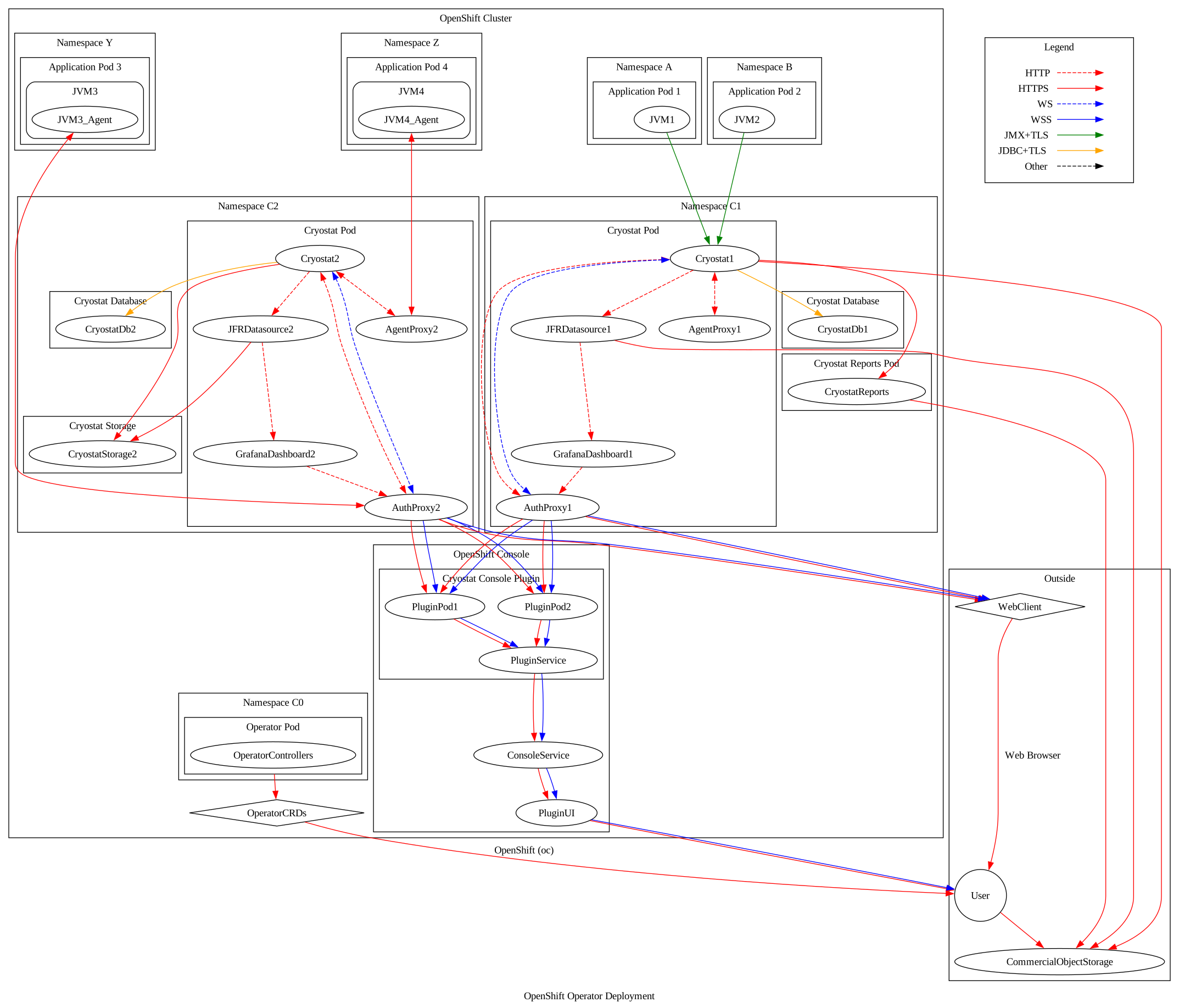
In this scenario, the Cryostat Operator is installed into its own namespace. It runs here separately with its privileged serviceaccount. Cryostat Custom Resource objects are created to request the Operator to create Cryostat instances. The CR has a field for a list of namespace names that the associated Cryostat instance should be deployed across. When the Cryostat instances are created, they are supplied with an environment variable informing them which namespaces should be monitored. These Cryostat instances are deployed into their own separate install namespaces as well and run with their own lower privileged serviceaccounts. Using these privileges they perform an Endpoints query to discover target applications across each of the listed namespaces. Cryostat will only automatically discover those target applications (potentially including itself) that are located within these namespaces. Cryostat queries the Kubernetes/OpenShift API server for Endpoints objects within each namespace, then filters them for ports with either the name jfr-jmx or the number 9091 (or both). Other applications, within the namespace or otherwise, may be registered via the Custom Targets API or the Discovery Plugin API (ex. using the Cryostat Agent), but Cryostat will not be aware that these applications may be in other namespaces.
The Cryostat Operator also creates NetworkPolicy objects to control the ingress of traffic to the various Cryostat components. The main Cryostat Service is allowed to receive traffic from any namespace within the cluster, or from its Route. The database, storage, and report generator Services are only allowed to receive traffic that originates from the Cryostat instance in the same namespace.
The Agent Proxy (Gateway) container acts as an alternative to the Auth Proxy, specifically for use by Cryostat Agent instances, and in particular those deployed and configured by the Operator’s autoconfiguration feature. This Proxy Gateway allows Cryostat Agent instances to use TLS Client Authentication with a Certificate supplied by the Operator (via cert-manager) instead of Bearer auth tokens.
With this setup, the target applications are not able to assume the privileges associated with the serviceaccounts for the Cryostat Operator or each of the Cryostat instances. Each Cryostat instance can discover and become aware of target JVM applications across any of the namespaces that this particular instance is monitoring. The separated namespaces also ease administration and access management, so cluster administrators can assign roles to users that allow them to work on projects within namespaces, and assign other roles to other users that allow them to acces Cryostat instances that may have visibility into those namespaces.
Agent Autoconfiguration
Using labels on a Deployment's .spec.template.metadata.labels field, a user can request the Cryostat Operator to patch their application Deployment to add and configure the Cryostat Agent. The two required labels are cryostat.io/namespace and cryostat.io/name. These should be populated with values corresponding to the installation namespace of a Cryostat Custom Resource that the user wishes their application to be registered with. The Cryostat Operator will validate that the application Deployment belongs to one of the Target Namespaces of the Cryostat CR, and ignore the request if it does not. The patching done by the Cryostat Operator involves mounting volumes to the </code>Deployment’s</code> Pods containing the Cryostat Agent JAR and various TLS certificates required for secure communications; patching the JAVA_TOOL_OPTIONS environment variable to append the -javaagent:/path/to/cryostat-agent.jar flag so that the application statically attaches the Cryostat Agent at startup; and adding additional environment variables to the Deployment to configure the Cryostat Agent to load the TLS certificates, determine its own callback URL, and to communicate with the Cryostat Agent Service in its own Namespace. The Cryostat Operator places an Agent Service in each Target namespace, which points at the Agent Proxy (Gateway) component of the associated Cryostat instance.
The environment variable selection can be modified using the cryostat.io/java-options-var label. This defaults to JAVA_TOOL_OPTIONS as described above.
If the Deployment template describes a Pod containing more than one container, the cryostat.io/container can be used to select a container by name. This container will be the one configured to use the Cryostat Agent. If this is not specified, the Operator will default to picking the first container within the Pod.
The label cryostat.io/read-only can be used to configure the injected Cryostat Agent instance to only accept “read” requests on its internal webserver. The Cryostat Agent will permit the Cryostat instance to perform actions such as querying for the list of active Flight Recordings, or the list of registered JFR Event Types, or reading MBean metrics. The agent will reject actions such as starting new Flight Recordings.
The label cryostat.io/callback-port can be used to control the HTTPS port exposed by the Cryostat Agent instance, which is how the Agent receives requests from the Cryostat instance. This defaults to 9977. If this port number is already used by the application or has some other meaning within the larger deployment, then this label can be used to change the Cryostat Agent HTTPS port number.
Flow of JFR Data
Cryostat traditonally connects to other JVM applications within its cluster using remote JMX, using cluster-internal URLs so that no traffic will leave the cluster. Cryostat supports connecting to target JVMs with JMX auth credentials enabled (“Basic” style authentication). When a connection attempt to a target fails due to a SecurityException, Cryostat responds to the requesting client with an HTTP 427 status code and the header X-JMX-Authenticate: Basic. The client is expected to create a Stored Credential object via the Cryostat API before retrying the request, which results in the required target credentials being stored in an encrypted database table. When deployed in OpenShift the requests are already encrypted using OpenShift TLS re-encryption as mentioned above, so the credentials are never transmitted in cleartext. The table is encrypted with a passphrase either provided by the user at deployment time, or generated by the Operator if none is specified. It is also possible to configure Cryostat to trust SSL certificates used by target JVMs by adding the certificate to a Secret and linking that to the Cryostat CR, which will add the certificate to the SSL trust store used by Cryostat. The Operator also uses cert-manager to generate a self-signed CA and provides Cryostat’s auth proxy with certificates as a mounted volume. For more information on setting this up, see Configuring the Operator
In more recent releases, JVM applications may optionally be instrumented with the Cryostat Agent, which uses the local JDK Instrumentation API to hook into the target application. The Cryostat Agent then exposes a JDK HTTP(S) webserver, generates credentials to secure it, and looks up its supplied configuration to locate the Cryostat server instance it should register with. Once it is registered the Cryostat Agent creates a Stored Credential object on the server corresponding to itself, then clears its generated password from memory retaining only the hash. From this point on, the Agent and Cryostat server communicate with each other using Basic authentication bidirectionally, and with TLS enabled on each webserver if enabled/configured.
Cryostat and the associated Operator will only monitor the Kubernetes namespace(s) that they are deployed within (see Scenarios above). The Operator creates NetworkPolicy objects to control ingress to Cryostat components by default, and the Custom Resource can be optionally configured so that the Operator also creates NetworkPolicy objects to control egress from Cryostat components. This way, end user administrators or developers can be sure of which set of JVMs they are running which are visible to Cryostat and thus which JVMs’ data they should be mindful of. Even without the egress NetworkPolicy objects, Cryostat will only attempt to discover workload applications within its configured Target Namespaces.
Once Cryostat has established a JMX or HTTP(S) connection to a target application its primary purpose is to enable JFR recordings on the target JVM and expose them to the end user. These recordings can be transferred from the target JVM back to Cryostat over the JMX/HTTP(S) connection. Cryostat does this for four purposes:
- to generate Automated Rules Reports of the JFR contents, served to clients over HTTPS. These may be generated by the Cryostat container itself or by cryostat-reports sidecar container(s) depending on the configuration.
- to stream JFR file contents into the cryostat-storage container “archives”, which saves them in a Kubernetes
PersistentVolumeClaim. If the Cryostat instance is configured with an “external” storage provider, then rather than a cryostat-storage container this is an independent object storage service that may be managed by the user, or another team, or may be a commerically available object storage service outside of the Kubernetes cluster. - to stream a snapshot of the JFR contents over HTTPS to a requesting client’s GET request
- to upload a snapshot of the JFR contents using HTTPS POST to the jfr-datasource
(“archived” JFR copies can also be streamed back out to clients over HTTPS, or POSTed to jfr-datasource, and Automated Rules Reports can also be made of them)
Here, “the client” may refer to an end user’s browser when using Cryostat’s web interface, or may be the end user using a direct HTTP(S) client (ex. HTTPie or curl), or may be any other external process acting as an automated external client. All of these cases are handled identically by Cryostat.
jfr-datasource receives file uploads by POST request from the Cryostat container. Cryostat and jfr-datasource run together within the same Pod and use the local loopback network interface, so the file contents do not travel across the network outside of the Pod. These files are held in transient storage by the jfr-datasource container and the parsed JFR data contents held in-memory to make available for querying by the Grafana dashboard container, which also runs within the same Pod and communicates over the local loopback network interface.
Cryostat Authz Specifics
When deployed in OpenShift, the Cryostat Service is fronted by an instance of the OpenShift OAuth Proxy. This proxy will accept Authorization: Bearer abcd1234 headers from CLI clients, or will send interactive clients through the OAuth login flow to gain an authorization token and cookie. These tokens are the ones provided by OpenShift OAuth itself, ie. the user’s account for that OpenShift instance/cluster. On each HTTPS request, the OAuth Proxy instance in front of Cryostat receives the token and sends its own request to the internal OpenShift OAuth server to validate the token. If OpenShift OAuth validates the token the request is accepted. If OpenShift OAuth does not validate the token, or the user does not provide a token, then the request is rejected with a 401. The default RBAC configuration requires clients to pass a create pods/exec access check in the Cryostat instance’s installation namespace.
When deployed outside of OpenShift, the Cryostat Service is instead fronted by an instance of OAuth2 Proxy. This behaves very similarly to the OpenShift OAuth Proxy except without the integration to the cluster’s internal OAuth server. Instead, users are able to configure an htpasswd file to define Authorization: Basic base64(user:pass)-style authentication. In this mode there is no RBAC, users either have an account and may access Cryostat or they have no account.